Part 2 of 5 · The 2026 Apple AI Stack
The Invisible Intelligence: App Intents & Foundation Models
Most iOS features hide behind the app icon. The best 2026 ones answer from Siri, Spotlight, and Shortcuts without opening the app. Here is how I built one with App Intents and Apple's on-device model.

Charith 'Alex' Gunasekara
Head of Development & Engineering
Most app features live behind the app icon. The user opens the app, taps around, and does the thing. The best iOS features in 2026 are not like that. They answer from Siri, Spotlight, and the Shortcuts app, and the app never opens. The work happens in the background, and the user just gets the result.
In Part 1 I mapped the whole 2026 Apple AI stack and said the default is to use the OS. This article is the first deep one. I built a small app called SmartCut Log to show two things working together:
- App Intents — the system entry point. This is how Siri, Spotlight, and Shortcuts can run your feature.
- Foundation Models — Apple's on-device model. This reads a messy sentence and returns clean, structured data.
The full project is on GitHub: SmartCut Log. Everything below is real code from it. It uses beta 2026 frameworks (iOS 26, Xcode 26), so some API names may still change.
What the app does
You type or say one messy line, like "Bought groceries for $186.70" or "Pick up parcel from the post office". The app works out the category, a clean title, a due date, a priority, and an amount, then saves it. You can do this inside the app, or from Siri and Spotlight without opening it.
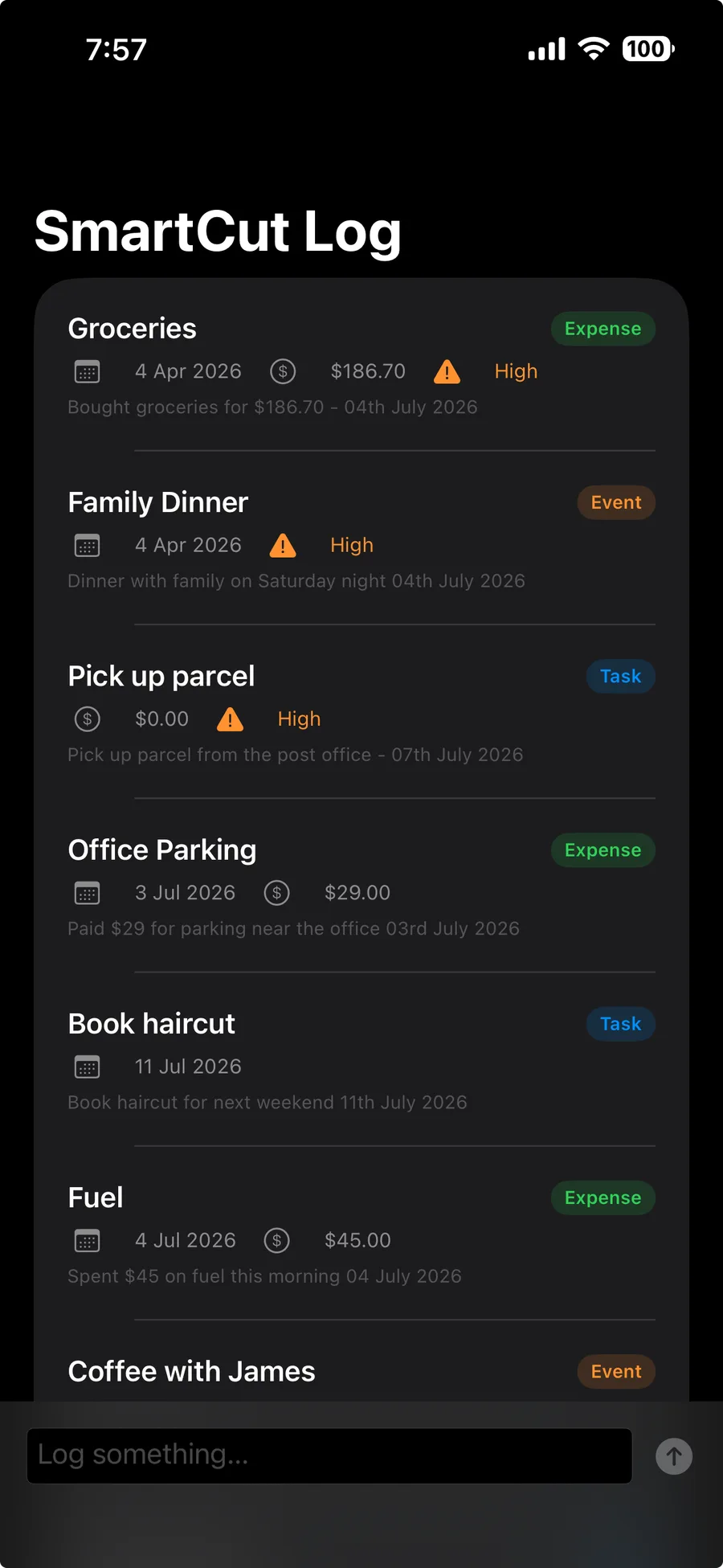
There are two ways in, and they both end at the same save code:
- You type a note in the app and tap send.
- Siri, Spotlight, or a Shortcut runs the action in the background.
Let me walk the whole thing, from how the system even knows this feature exists, down to how it is saved.
How the system finds your feature
Here is the part that surprises people: there is no registration code. I never call anything to "register with Siri" or "add to Spotlight". It works like this:
- When you build the app, the Swift compiler scans your code for App Intents types and writes a small metadata file (
Metadata.appintents) inside the app bundle. - When the app is installed — from the App Store, or a debug install from Xcode — the system reads that metadata and adds your actions to Siri, Spotlight, and Shortcuts.
So the moment the app is on the device, you can search Spotlight for the action and it shows up:
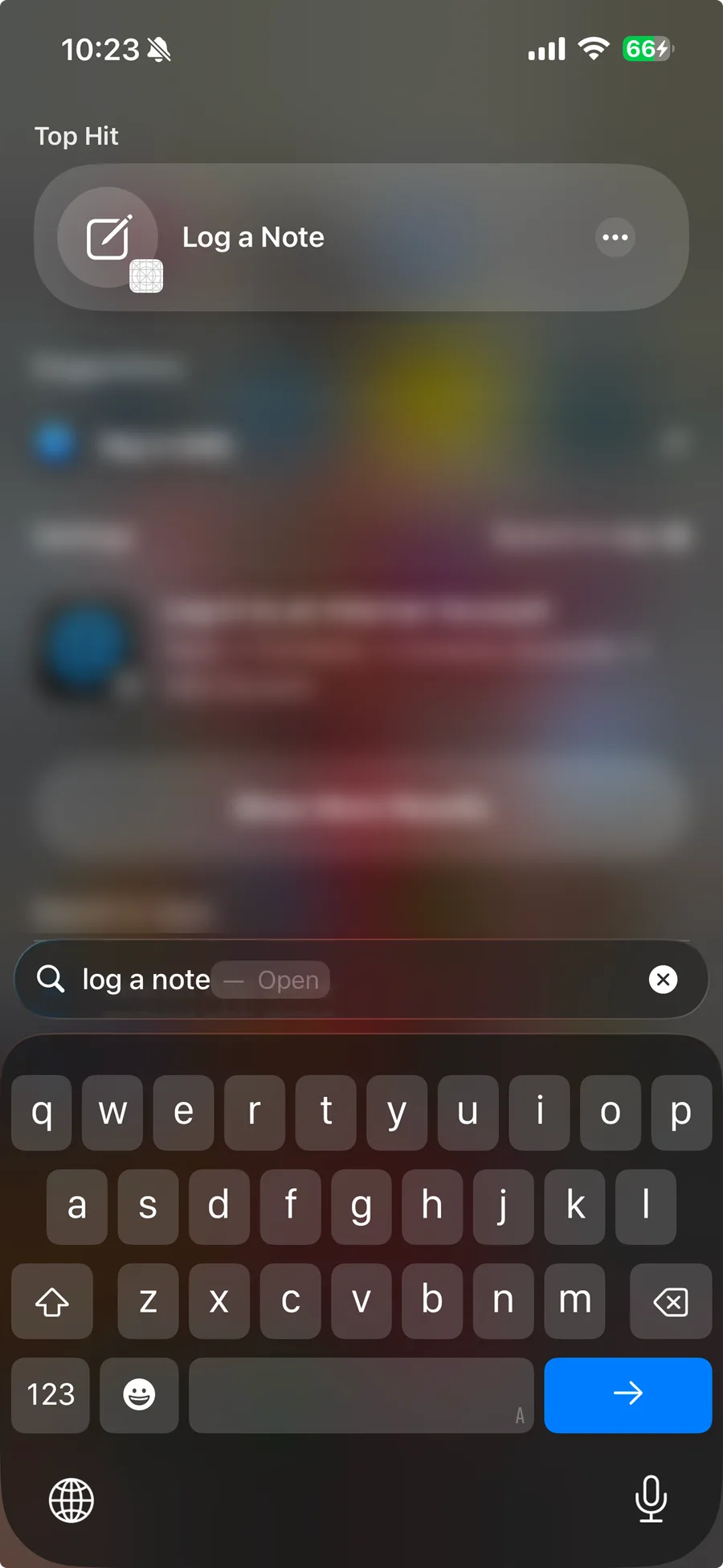
This is the first thing to appreciate about App Intents. You describe an action once, and the OS makes it reachable from everywhere. Now let me build that action from the inside out.
Step 1: the shape you want back
Before calling the model, I define the shape of the answer I want. This is the key idea of the on-device model work, called guided generation.
Normally a language model gives you a paragraph of text and you have to parse it. That is fragile. Instead, I mark a plain Swift type with @Generable. That makes it a valid output type for the model. When I call the model with this type, the framework makes the model fill it in directly. I get a real Swift value back, with the right fields and types. No JSON parsing.
import FoundationModels

@Generable
struct CapturedItem {

    // @Guide(.anyOf:) limits the model to these exact values, so it cannot
    // make up a new category.
    @Guide(.anyOf(["task", "expense", "idea", "event"]))
    var category: String

    // @Guide(description:) is a hint for a free-text field.
    @Guide(description: "A concise title of 3 to 7 words, no trailing punctuation.")
    var title: String

    // Optional, so "no date" is just nil.
    @Guide(description: "Due date as yyyy-MM-dd if the text mentions a day; otherwise omit.")
    var dueDate: String?

    @Guide(.anyOf(["low", "normal", "high"]))
    var priority: String

    // Amount only for expenses.
    @Guide(description: "The numeric amount if this is an expense, e.g. 42.50; otherwise omit.")
    var amount: Double?
}
Two @Guide styles matter here:
@Guide(.anyOf([...]))is a hard limit. The model can return only one of those strings. It cannot invent a new category. This is what turns "hope the model behaves" into "the output is always valid".@Guide(description:)is a hint for open text, like the title length or the date format.
One small beta note. I keep category and priority as String, not as enums, because the @Generable macro does not handle raw-value enums well in this beta. I convert the string to an enum later. Same guarantee, no macro trouble.
Step 2: calling the on-device model
CaptureService does the model work and nothing else. Three steps: check the model is available, run it, and map the result.
import FoundationModels

struct CaptureService {
    static let shared = CaptureService()

    func extract(from rawText: String) async throws -> CapturedItem {

        // 1) Check the model is available. It only runs on an Apple Intelligence
        // device with the feature on, and it can be busy downloading.
        let model = SystemLanguageModel.default
        switch model.availability {
        case .available:
            break
        case .unavailable(let reason):
            throw CaptureError.modelUnavailable(String(describing: reason))
        @unknown default:
            throw CaptureError.modelUnavailable("unknown")
        }

        // 2) A session with fixed instructions. Rules go here, the user's note
        // goes in the prompt below.
        let session = LanguageModelSession(instructions: Self.instructions)

        // 3) Guided generation. generating: CapturedItem.self makes the model
        // fill in our struct. response.content is the typed value.
        let response = try await session.respond(to: rawText, generating: CapturedItem.self)
        return response.content
    }
}
A few things I want you to take from this:
- Always check availability first. The on-device model is not on every device, and the user can turn Apple Intelligence off.
SystemLanguageModel.default.availabilitytells you if it is ready, and why not if it is not. - Instructions and the prompt are different jobs. Instructions are the model's fixed rules for the whole session. The prompt is the one note you are processing. Keep the rules out of the prompt.
respond(to:generating:)is the whole trick. You pass the type, you get the type back. No parsing step, no "invalid output" branch.
On-device tips. Give the model today's date in the instructions, or "tomorrow" has nothing to anchor to. Keep the schema small; fewer fields means better results. And never trust free text for a fixed choice — use
.anyOf.
The last step maps the model's CapturedItem into a LogEntry, which is the type I actually store. I will get to LogEntry in the SwiftData section. For now, note that the model output and the stored type are two different types on purpose. One is for the AI, one is for the database.
Step 3: the headless action
LogNoteIntent is the App Intent. This is the action the system runs from Siri, Spotlight, or Shortcuts.
import AppIntents
import SwiftData

struct LogNoteIntent: AppIntent {

    static let title: LocalizedStringResource = "Log a Note"

    static let description = IntentDescription(
        "Capture a quick note. SmartCut Log turns it into a structured item on-device."
    )

    // Do not open the app when this runs. Everything happens in the background.
    static let openAppWhenRun = false

    // Optional on purpose. See the Siri note below.
    @Parameter(title: "Note", description: "The note to capture.")
    var rawText: String?

    @MainActor
    func perform() async throws -> some IntentResult & ProvidesDialog {

        // 0) Get the text. If Siri started us with no value, ask for it now.
        let note: String
        if let rawText, !rawText.trimmingCharacters(in: .whitespacesAndNewlines).isEmpty {
            note = rawText
        } else {
            note = try await $rawText.requestValue("What should I log?")
        }

        // 1) Run the model.
        let item = try await CaptureService.shared.extract(from: note)

        // 2) Map to a storable record.
        let entry = CaptureService.shared.makeLogEntry(from: item, rawText: note)

        // 3) Save into the shared database.
        let context = ModelContext(AppModelContainer.shared)
        context.insert(entry)
        try context.save()

        // 4) Reply with a short line. Siri speaks it, Shortcuts shows it.
        return .result(dialog: "Logged \"\(entry.title)\" as \(entry.category.rawValue).")
    }
}
The important parts:
openAppWhenRun = falseis the headline. The whole thing runs in the background. The app does not open.perform()is the single entry point. Siri, Spotlight, and Shortcuts all call this one method. There is no delegate, no URL handler. The system builds the struct and callsperform().- The return type
some IntentResult & ProvidesDialogmeans the action finishes and also speaks a line back.
When you run it from Spotlight and the note is empty, the system asks for the text with a small prompt. That prompt text comes from requestValue:
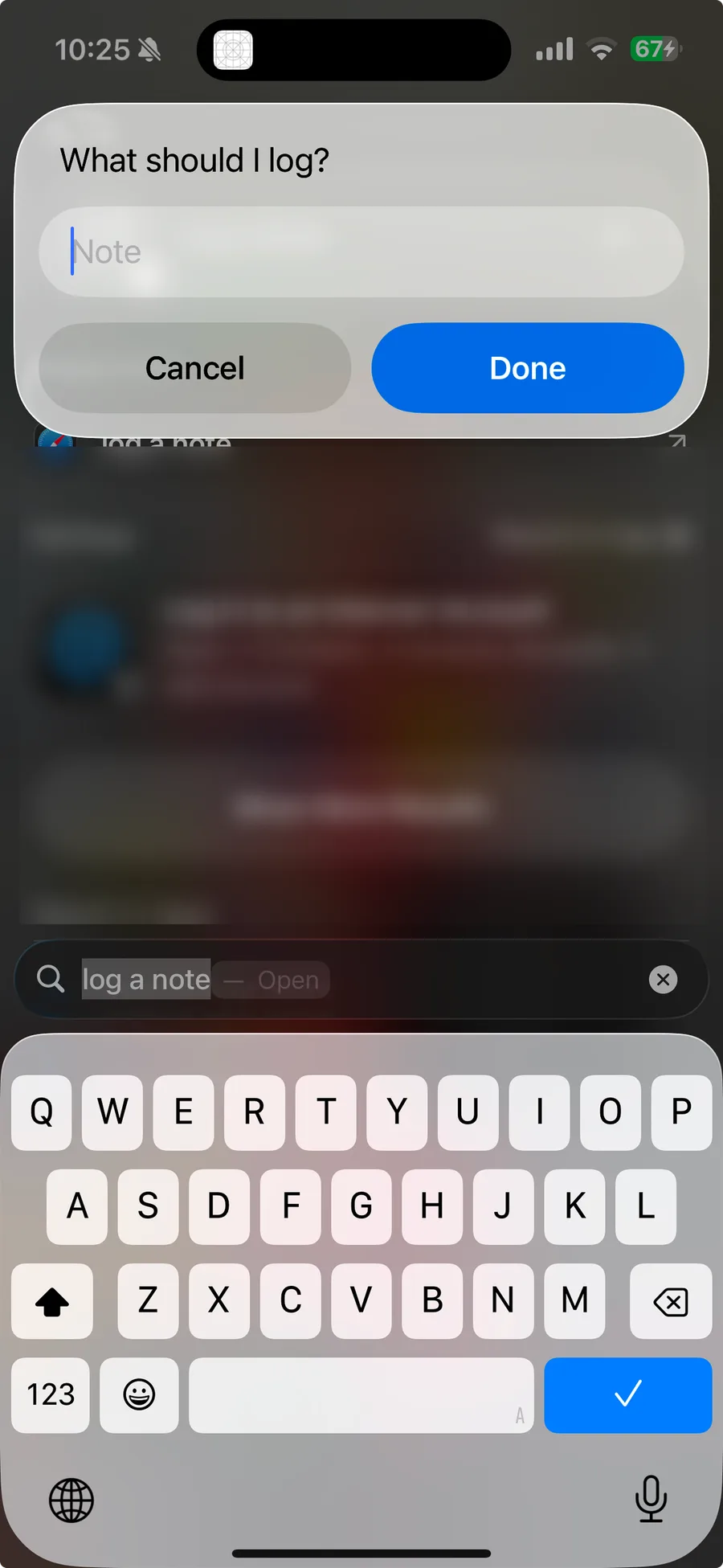
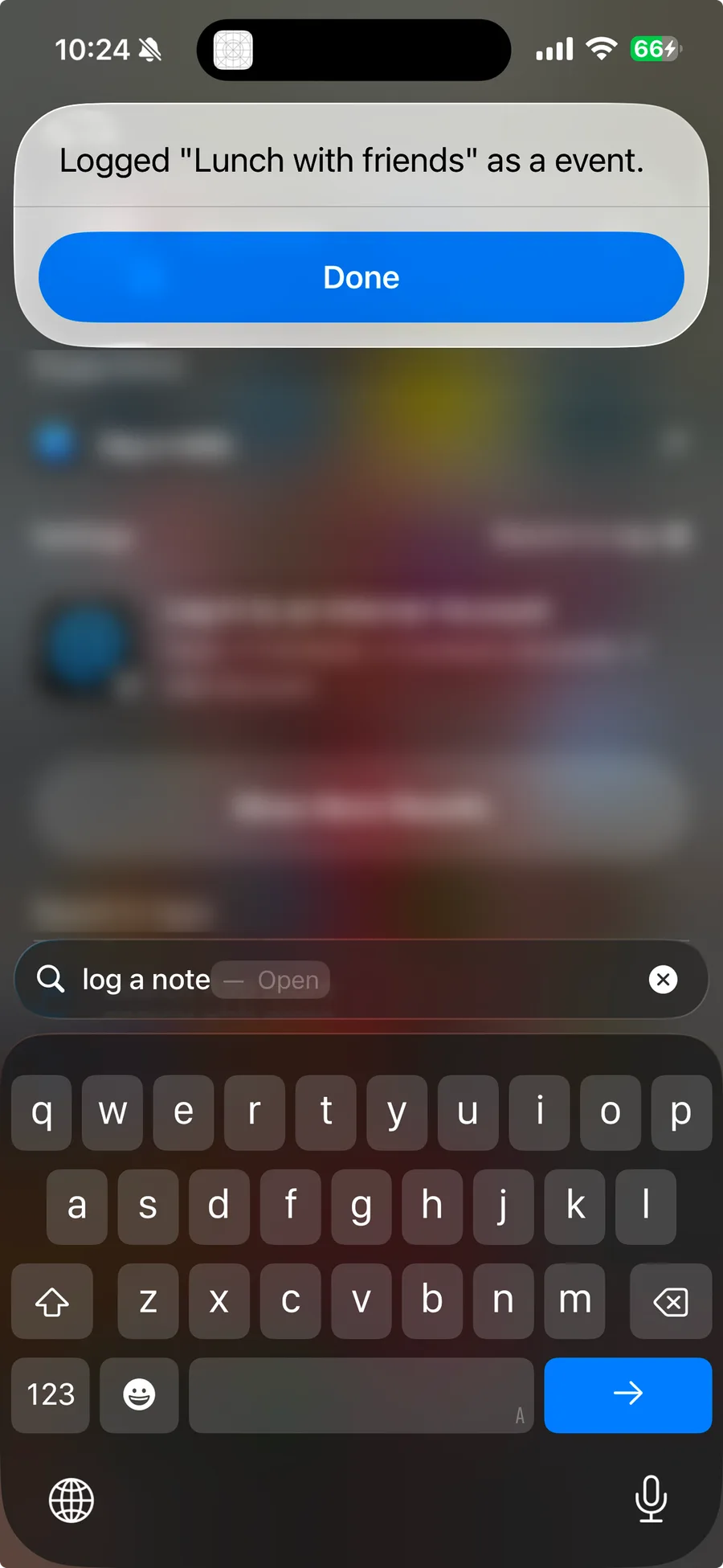
Then the model runs, the note is saved, and you get the spoken and on-screen reply:
The Siri gotcha worth knowing
This one cost me time, so I want to save you the trouble. My first version had rawText as a required String. It worked from the Shortcuts app and from Spotlight, but Siri voice kept saying "SmartCut Log hasn't added support for that with Siri."
The reason: an App Shortcut started by voice cannot collect a required free-text value before it runs. Shortcuts and Spotlight can, because they show a small UI. Siri voice cannot.
The fix is small. Make the parameter optional, and ask for the value inside perform() with requestValue. Now the action can start by voice, and Siri asks for the text itself. That is the else branch in step 0 above.
Step 4: the Siri phrases
The App Intent gives you the action. To trigger it by voice, you add an AppShortcutsProvider. The system reads this at install time and registers the phrases with Siri and Spotlight. The user does not have to build a shortcut first.
import AppIntents

struct SmartCutShortcuts: AppShortcutsProvider {

    static var appShortcuts: [AppShortcut] {
        AppShortcut(
            intent: LogNoteIntent(),
            phrases: [
                "Log a note in \(.applicationName)",
                "Log to \(.applicationName)",
                "Capture a note with \(.applicationName)",
                "Add a note to \(.applicationName)"
            ],
            shortTitle: "Log a Note",
            systemImageName: "square.and.pencil"
        )
    }
}
One rule: every phrase must contain \(.applicationName). That token tells Siri which app the phrase belongs to, and it is replaced with the app's real name at runtime. Leave it out and the build fails.
Here is the whole voice flow. I say the phrase, Siri asks what to log, I dictate, and the note appears in the app, even though I never opened it:
Two honest notes from building this. First, free-text dictation through a custom App Shortcut is the most fragile Siri path. Spotlight and Shortcuts are rock solid. Voice needs the optional-parameter fix above, and after any change to the intent, Siri's voice index may need a reinstall to catch up. Second, App Intents need no special Siri capability or Info.plist key. But the user still controls a per-app Siri switch, and your code cannot turn it on for them. That switch is a privacy boundary, and I think that is a good thing.
Step 5: SwiftData, and one store for two writers
Now the storage, which has a nice detail in it.
LogEntry is the saved record. It is a normal SwiftData @Model class.
import SwiftData

@Model
final class LogEntry {
    var rawText: String
    var title: String

    // Stored as raw strings ("task", "high"), not enums. Simpler, and easy to
    // filter later with #Predicate. Typed accessors below convert them back.
    var categoryRaw: String
    var priorityRaw: String

    var dueDate: Date?
    var amount: Double?
    var createdAt: Date

    init(rawText: String, title: String, category: ItemCategory,
         priority: ItemPriority, dueDate: Date? = nil,
         amount: Double? = nil, createdAt: Date = .now) {
        self.rawText = rawText
        self.title = title
        self.categoryRaw = category.rawValue
        self.priorityRaw = priority.rawValue
        self.dueDate = dueDate
        self.amount = amount
        self.createdAt = createdAt
    }
}

extension LogEntry {
    var category: ItemCategory { ItemCategory(rawValue: categoryRaw) ?? .idea }
    var priority: ItemPriority { ItemPriority(rawValue: priorityRaw) ?? .normal }
}
The detail that matters is the shared database. The App Intent can run in the background without opening the app. If the intent wrote to its own database, a note added by Siri would never show in the app. So I make one container and share it between the app and the intent.
import SwiftData

enum AppModelContainer {
    static let shared: ModelContainer = {
        let schema = Schema([LogEntry.self])
        let configuration = ModelConfiguration(schema: schema, isStoredInMemoryOnly: false)
        do {
            return try ModelContainer(for: schema, configurations: [configuration])
        } catch {
            fatalError("Could not create the SmartCut Log database: \(error)")
        }
    }()
}
The app injects this container into SwiftUI:
@main
struct SmartCutLogApp: App {
    var body: some Scene {
        WindowGroup { ContentView() }
            .modelContainer(AppModelContainer.shared)
    }
}
And the intent makes a context from the same container: ModelContext(AppModelContainer.shared). Because it is the same store on disk, a note saved by Siri in the background shows up in the app's list with no refresh code. The list uses @Query, and SwiftData updates it on its own.
SwiftData saving tips from this app.
- Share one container between the app and the App Intent (or extension), or background writes go to the wrong place.
- Store enums as raw strings if you plan to filter with
#Predicate. Predicates on enums can be awkward. AStringcolumn is simple and fast.- Keep the model output type and the stored type separate.
CapturedItemis transient, from the AI.LogEntryis durable, for the database. Convert between them in one place.- Do writes on one actor. I mark the intent's
perform()and the view's save path@MainActor, soModelContextnever crosses threads.
Two ways in, one save path
This is the part I like most. Both entry points do the exact same work.
From inside the app, the text field calls the same service on submit:
private func capture() {
    let text = trimmedDraft
    guard !text.isEmpty else { return }
    isCapturing = true
    Task {
        do {
            let item = try await CaptureService.shared.extract(from: text)
            let entry = CaptureService.shared.makeLogEntry(from: item, rawText: text)
            modelContext.insert(entry)
            try modelContext.save()
            draft = ""
        } catch {
            errorMessage = error.localizedDescription
        }
        isCapturing = false
    }
}
From Siri, Spotlight, or Shortcuts, LogNoteIntent.perform() does the same three lines: extract, makeLogEntry, insert and save.
So the flow is the same no matter where it starts:
in-app text field    ─┐
Spotlight            ─┤→  CaptureService.extract  →  CapturedItem
Siri                 ─┤→  makeLogEntry            →  LogEntry
Shortcuts            ─┘→  insert + save (shared store)  →  the list
One engine, four callers. That is the whole design in one picture.
When to use this, and what to watch
App Intents plus Foundation Models is a strong combination when a feature is small, clear, and worth reaching from outside your app. Quick capture, logging, "start this", "add that". The user gets it done in one step, and your app does not need to open.
The part I appreciate most is the on-device model itself. It is fast, it runs fully on the phone, and for everyday work like this it is more than good enough. Two things make it stand out. Privacy: the note never leaves the device, so even sensitive personal data is safe to process. Cost: there is no AI bill, because you are not calling a paid service.
You still build for the requirement. Light, structured work like this stays on-device. When a task gets heavier, the system can move up to Apple's Private Cloud Compute on its own. It is still private and still Apple, just with more power. And if you really need a frontier model, you can bring a paid one like Claude, OpenAI or Gemini through the same Swift API, but then you pay per call and the data leaves the device. So the rule I follow is simple: start on-device, and reach for the cloud only when the work needs it. Two things to keep in mind either way: the model is not on every device, so handle the "not available" case, and its output is good but not perfect, so keep the schema tight and check it.
The bigger point holds. In 2026 the system can run your feature for the user, hands-free, from Siri, Spotlight or a Shortcut. App Intents is the door to that, and the on-device model is what makes it useful. That is a real shift in how an app reaches people.
Next in the series I go back one layer, to Core ML — the proven, non-generative workhorse, and when it still beats reaching for a model.